Wednesday, April 23, 2014

10 Best Google Adsense Alternatives (2014)

“Your Google Adsense account has been disabled or temporarily banned”.
Updated (2014):
  • Added new Affiliate Networks and updated some recommendations and programs for 2013.
  • Adbrite is dead as of February 2013
  • Chitika went up to number 2
  • Adversal added to number 3
What a nice phrase on an email to start the day huh? Well, consider you’re not alone. Everyday, hundreds or thousands of accounts are being banned from Google’s Adsense program. Why? I can’t tell you specifically. Either there’s something wrong with the web you’re putting you ads on, or you just simply missed one rule from Google’s TOS.
Instead of crying or bashing Google in multiple forums (actually, this is a very bad idea), remember the world is not over yet, and there are plenty of alternatives out there to try. Google was just your first one, and you failed.
So, stand up, be proactive and act professional! There’s no time to lose.

10 best Google Adsense Alternatives

Here are some of the best Google Adsense Alternatives you can try to monetize your website without using Google Adsense, and I’ll tell you how they work and why you should consider them, so let’s start:

10. Infolinks

Infolinks is a Pay per click advertisement network that allows you to make money through your blog based on specific keywords. Infolinks indexes your pages and automatically add some hiperlinks in your text. Of course, since this isn’t a CPM program, it might take you a while to start earning a regular passive income through it, but it’s still an alternative to Adsense. They can pay you via Paypal and there’s an initial limit of $50. Infolinks is great for big websites, but if you’re barely starting keep reading.

9. Kontera

Kontera is a known network very similar to Infolinks. It’s also a text based network that adds links to your content based on specific keywords showing a doubled-underlined text and pop-up ads. This is also a pay-per-click program, so it depends on your CTR percentage to earn money. However, Kontera is definitely a better option if you have a small blog or you’re just starting your website, because it allows small sites to be added to your network. they can pay you via check or Paypal with the same $50 initial limit, and you can use it with Adsense at the same time.

8. Amazon Associates


You can make a good amount of money from Amazon, especially in Christmas and other holidays
Amazon is the biggest online store in the world, so they must be doing something good. Well, if you have a website that talks about any product that can be found on Amazon, then Amazon associates could work for you. Amazon allows you to put dynamic image ads to your blog, so that you can promote them and while this isn’t a Pay-per-click or CPM program, it will pay you a small commission for everything they sell from your links. So let’s say you have a blog about Apple products and you put an ad driving them to buy an iPod or just a cable. If they buy it, an small commission will be for you. So if you sell a $10 cable you might receive a few cents, but sell a $1500 Laptop and you might receive $100. The good thing is that everything they buy through your link (even if it isn’t the product you recommended at first) will generate a commission for your. the only con I find with Amazon, is that they need to send you a check that could take weeks to arrive to your home, unless you live in the United Stated of America where you can provide your Bank account. You can use this with Adsense at the same time.

7. BuySellAds

If you’re thinking on selling ad spaces from your website but you have no clients to land on BuySellAds might be the right network for you. buySellAds allows you to sell a space unit to many customers depending on the kind of traffic they want. so, if your blog has space for 4 ads, you can publish them here and wait until someone wants to buy your ad. While this can lead to a good income, this also means you need a good quantity of visitors and page views if you want to be appealing on BSA. BSA pays 75% of the revenue generated and you can get your payment via paypal twice a month, without any starting limit.

6. Text Link Ads

Text Link Ads allow you to sell text ads from your sites. The price of your ads varies between your Page Rank, Alexa Rank, traffic, Social media and everything. So, the higher PR you have, the more expensive links you can sell. TLA pays you via check, Paypal or TLA voucher and they offer 50/50 revenue with a minimum limit of $25. You can sell up to 10 contextual advertisements from your site on TLA.

5. Clicksor

Clicksor is ad advertising network that allows you to serve text, contextual and popup ads. With more than 150,000 pages working on Clicksor, it’s became quite a good alternative to Google Adsense. They share up to 60% of the revenue depending on the ad (popup ads usually generate more) and they can pay you via check or Paypal with a minimum of $50. Sign up in 2 minutes with Clicksor here.

4. Qadabra

Qadabra is a performance based advertisement network created for publishers to monetize their websites and traffic. I recently discovered Qadabra and their platform is simple and easy to use. Qadabra provides different ad sizes and they have a pop up option. They support international traffic with great fill rates and they pay via: paypal ($1 minimum payout), payoneer prepaid card ($20 minimum) and wire transfer ($500 minimum). So it’s a great option for starters if you’re using paypal. I got approved for Qadabra in less than 2 minutes. Register here.

3. Adversal

Adversal is a great alternative of Adsense and works as great as Chitika. They have good banners and the CTR and revenue adapts to get the best results for your website. I’ve seen the Ads on Adversal have a good CTR and they have good image ads too. This is probably the Ad network which seems to work better for those looking for a replacement of Google Adsense. It works decently with other languages too (Chitika doesn’t).  You account gets approved really fast and they also have Pop under /CPM ads as an option. Note: Adversal requires a website with a minimum of 50,000 page views per month, but they have proven to work really well. They also pay via paypal. Sign up here.

1. Affiliate Marketing

I’m leaving affiliate Marketing in the number 1 spot for many reasons. Affiliate Marketing means you’re selling a product or a service from another enterprise (which means you don’t have to develop it) and you earn a commission for that. You can find a lot of Affiliate Marketing programs on the net, and they can vary from selling a $10 small product up to selling a $300 software. The beauty of affiliate marketing is that the more you know and test a product or service, the more you can sell it.
Some affiliate programs can earn you more than $50 for each sale depending on the product and I truly recommend you test and backup your sales by using the product yourself (even though it’s not 100% necessary). If you are an authority in a niche, you can use it to boost your sales and grow even more. You can set affiliate links in banners, text, images and basically everywhere, and it can grow into a big passive income earner if done well. Some examples of people that have become very successful with affiliate Marketing are:
  • Pat Flynn from the Smart Passive Income blog
  • Michael Dunlop from the Income Diary
  • Darren Rowse from the Problogger Network
  • And more people that earn 6 figure incomes per month, mostly via passive income.
Some great Affiliate Marketing Networks are a great way to start your online journey, because you can look for products and advertise them on your website without having them, as long as they’re related to your niche. The best Affiliate Networks I know until now are:
  • Yesadvertising -> I’ve done good money promoting YesAdvertising campaigns
  • ClickBank -> Learn which products you should promote and make more money with CBEngine
  • Peerfly -> My favorite along with Yesadvertising. Their offers are top notch!
 You just need to look out for the products or services related to your niche and find something to promote. Many affiliate Marketeers are earning tons of dollars from those affiliate networks only.

Friday, April 18, 2014

How to Change Your Blogger Admin Email Without Losing Your Blog

Some time ago, i wanted to change the admin email of my blog, in the
process, i made a very big mistake. When i added the second email, i
thought it was all done, i went ahead and deleted the first email
account while it was still my admin email. And the repercussion, i
lost access to that blog.
I know some people may be in the same situation. It may be that you
have a Gmail account and hope to create a new Gmail address or you
just want to transfer your blog to another email address probably
because you don't like the present admin email. You must take care to
do it so that you will not regret your actions later. Never delete an
email account when it is still your admin email. By doing so you will
inadvertently delete your blog and that is nearly impossible to
recover.


Transferring your Blogger blog from one gmail / email account to
another is a very simple process if you do it correctly.

To transfer your Blogger / Blogspot blog to a new email address,
follow these simple steps correctly:

1. Sign into your current Gmail account, i mean your admin email, the
one you use to sign in to your blog.

2. From your dashboard, select Customize > Settings> Permissions>

3. Then select "Add Author."

4. Add the new Gmail account as an author.

5. Sign out of Blogger and Gmail.

6. Sign into your new Gmail account.

7. You will receive a message of invitation to be an author. Accept
the authorship to your blog.

8. Sign back into the first (admin) account.

9. Go back to Customize> Settings> Permissions.

10. Grant your new email address Admin Privilege. This will give both
email addresses equal blogging control.
You can now log in with your new admin email and control your blog with it.

Now, if you wanted to delete the old email, take the following steps:

1. From your dashboard, select Customize > Settings> Permissions>

2. Then clicking "remove". This dissociates the email from your blog.

Once you have severed the relationship between the email and your
blog, your Gmail account can now be safely removed without losing your
blog.
Lastly, if you lost your blog.

Tuesday, April 15, 2014

Create Custom Post Status in WordPress using register_post_status()

Upon recently in WordPress i have not had a reason to create a custom post status, i have just used the default statuses of ‘publish’, ‘private’, ‘protected’ but this time i required a custom post status to still be visible to the public but display a notification that it was no longer valid hence the creation of ‘archive’ custom post type.
This article will show you how to create custom post status and add that post status to the WordPress post status drop down menu.

Registering WordPress custom post status ‘archive’

To create a custom post status in wordpress, you need to first register it in your wordpress theme, once registered at first you will not notice anything different. Once you have added a post to your new status you will notice in the administration index for that post type will display a new link to view all posts with your new status.
Add the snippet below to your themes functions.php file.
<?php
function jc_custom_post_status(){
     register_post_status( 'archive', array(
          'label'                     => _x( 'Archive', 'post' ),
          'public'                    => true,
          'show_in_admin_all_list'    => false,
          'show_in_admin_status_list' => true,
          'label_count'               => _n_noop( 'Archive <span class="count">(%s)</span>', 'Archive <span class="count">(%s)</span>' )
     ) );
}
add_action( 'init', 'jc_custom_post_status' );
?>
We hook our function to be run when wordpress inits, this is the earliest that a custom post type can be registered. We then register our archive post status with an array of arguments ( a full list of what these arguments do can be found here )

Adding custom post status to WordPress status dropdown

WordPress custom post statuses can be used without adding them to the edit posts post status drop down menu, but for this demonstration it is a good visual starting point.
Add the following snippet in your themes functions.php file.
add_action('admin_footer-post.php', 'jc_append_post_status_list');
function jc_append_post_status_list(){
     global $post;
     $complete = '';
     $label = '';
     if($post->post_type == 'post'){
          if($post->post_status == 'archive'){
               $complete = ' selected=\"selected\"';
               $label = '<span id=\"post-status-display\"> Archived</span>';
          }
          echo '
          <script>
          jQuery(document).ready(function($){
               $("select#post_status").append("<option value=\"archive\" '.$complete.'>Archive</option>");
               $(".misc-pub-section label").append("'.$label.'");
          });
          </script>
          ';
     }
}
The previous snippet of php and jquery gets hooked into the footer of the admin post.php page, you can set the script to a certain post type by changing the following line, replacing ‘posts’ with what custom post type you wish to add it to:
if($post->post_type == 'posts'){
Now lets try it out, go and edit a published post, click on the edit button next to the word status just above the blue publish button, options shown below:

Custom post status list
Click on the blue button to update the post, now in the administration index page for this post type you should have a new archive filter to display posts with your custom post status, shown below:

Custom post status admin filter

Adding custom post status to post type index

To finish your new custom post status by making it easier to tell the difference between your new status and others, for example when you make a post private in the list of posts you get a private next to the post.
Display custom post status label
Add the following snippet to your functions.php file to add this to your custom post status:
function jc_display_archive_state( $states ) {
     global $post;
     $arg = get_query_var( 'post_status' );
     if($arg != 'archive'){
          if($post->post_status == 'archive'){
               return array('Archive');
          }
     }
    return $states;
}
add_filter( 'display_post_states', 'jc_display_archive_state' );
The following section only shows the post status next to the post when viewing all posts, and hides it when you view the list of archived posts, get_query_var get the currently selected post status from the url and the if statement checks to see if the archive post status is not being viewed.
$arg = get_query_var( 'post_status' );
if($arg != 'archive'){
// code here if archive post status not selected
}

Sunday, April 13, 2014

Creating a Custom Page Template in WordPress

All WordPress themes have a file called page.php. This is your template file for all pages you have on your blog (remember, pages are distinctly different than posts). The page.php file is your default page template. To create a new one, just open that file in any text editor then “save as” a different file name. In my case, I named the template for my sales page signup_page.php.
Now, at the very top of this new file, you’re going to want a block of PHP code as follows:
<?php
/*
Template Name: [your page name here]
*/
?>
This is a PHP comment. Leave the “Template Name:” in place, but you need to change the name of the page. Once you have done that, upload this new file to your blog theme’s folder.
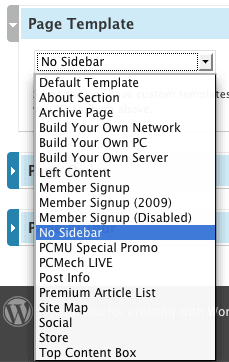
Then, in WordPress, when you go to add or edit a page, scroll way down and you’ll see a setting for “Page Template”. You should see your new page template listed in the dropdown, using the name you entered above. To the right, you can see what my dropdown list looks like in my own WordPress admin panel. I have many different custom page templates in my system, all for different purposes.

Customizing Even Further

At this point, you would have a custom page template, but it would be an exact duplicate of your default page template. So, you would need to customize it. For example, if you want to get rid of the sidebar, just remove the the following line from your template:
<?php get_sidebar(); ?>
You can change any other HTML in this file that you want.
If you want to include different a different header, you would need to hack the code just a bit. By default, the get_header() and get_footer() functions include the default headers and footers for your theme. However, you can replace these with custom PHP includes to any file you want. For example, you could replace:
<?php get_header(); ?>
with this:
<?php include(“header_new.php”); ?>
This would include the file header_new.php from your theme as your header. You would, of course, need to create a file called header_new.php and alter the HTML to make that your new header file for that page.
You can do this same thing for your footer or even your sidebar if you want to include a different sidebar.

Wrapping It Up

The WordPress template system is insanely customizable once you know how to do it. Above is how I have gone about it for my sales page. I have a custom page set up, and it includes a custom header and custom footer (both with stripped down options). I left the sidebar out. In my case, I even put the HTML for the content of the page into the template itself. Inside of WordPress, the content field is blank. I just selected the custom page template, saved the page, and now my signup page works quite well.
Repeat the same basic process for any page of your blog that you want to have a custom appearance. It is so much easier than trying to pack complicated HTML into the editing field of WordPress.
Happy customizing!

Saturday, April 12, 2014

Google SEO Methodology - A Step by Step Guide

We have developed a simple search engine optimization methodology that you can use to optimize a page on your site for a single keyword phrase in Google. We have broken it up into 3 distinct phases: on-page SEO, internal off-page SEO, and then external off-page SEO.
Before you can begin the SEO process for a keyword, you must first select the landing page you hope will rank for the phrase. In most instances, the best landing page to select for Google can be found with the following query: site:example.com keyword phrase. This will show you what page from your site Google considers to be the most relevant for the keyword. If you decide to create a brand new page for the targeted phrase, then you should utilize the keyword in the filename. Once you have selected the landing page you can then begin the following search engine optimization process.

Phase 1 – Optimize your Landing Page (On-Page SEO)

  1. Use keyword phrase in the Title tag. Phrase should end within first 70 characters.
  2. Use keyword phrase in Meta Description. Phrase should end within first 156 characters.
  3. Use keyword phrase in <h1> tag if there is one.
  4. The keyword phrase should be used in the page's text-based body content at least twice. On pages more than 500 words in length, make sure that keyword density is at least 1.5% (but no more than 6 or 7%). Keyword usage should be evenly distributed throughout the page.

Phase 2 – Internal Off-Page SEO

  1. Identify additional pages on your site that can also be optimized for targeted keyword phrase.
  2. Once the support page(s) has been identified, maximize the link relevance passed on to the landing page by: a) using the keyword phrase in page Title and Meta Description, b) using the keyword phrase in non-hyperlinked body content, and c) hyperlinking one instance of the keyword phrase to the intended landing page.
  3. Maximize the number of optimal internal links to your landing page. Vary the anchor text going to your landing page by using slight variations of the keyword phrase (e.g. singular/plural, synonyms, long-tail variations, etc.)
  4. This phase can be extended by creating more pages support the landing page. But unless you have significantly fewer pages than your competition, then you would probably be better served to move on to Phase 3.

Phase 3 – External Off-Page SEO (Link Building)

After you have optimized as many of your pages as possible and linked them to your landing page, you should then move on to external link building. There is no simple step-by-step process for this phase. You will have to determine how to make your content more linkable so that you can develop links naturally. You should also research your competition to find the most relevant links to your landing page. Keep the following guidelines in mind as you try to build external links for Google search engine optimization:
  • Always seek quality instead of quantity. Focus on finding pages that are relevant for your targeted keyword.
  • The optimal link from a 3rd party site is the same as an optimal link from one of your own pages. The targeted keyword phrase will ideally be in the Title and Meta Description, body content and the linking anchor text.
  • Avoid site-wide (i.e. global, run-of-site) links in all circumstances. This is an especially important guideline if the site is not keyword-relevant. Your landing page will more than likely get filtered for the targeted keyword unless you have high quality links to legitimize the relevancy.
  • Brainstorm link bait or link magnet ideas so that inbound links will hopefully develop naturally.
  • Unfortunately, the most relevant links are only attainable by providing an incentive to the site owners. Advertising relationships, partnerships and bartering possibilities should be explored to obtain the most valuable links.
  • Do not pay for a link from a non-relevant site unless it has significant traffic potential.

Wednesday, April 9, 2014

Remove Ads from Mozilla Firefox Using Adblock Plus

Are you tired of ads blaring at you with handwaving, blinking images and annoying, disruptive sounds? You're not alone. Many internet users find web ads annoying and intrusive. Some ads may even harm your computer by installing small programs that monitor your activities on the Internet. Luckily, with Mozilla Firefox and an add-on named Adblock Plus you can easily get rid of ads. Here’s how to install and use it.

Part 1 of 2: Installing


  1. spaceplay / pause
    escstop
    ffullscreen
    shift + slower / faster (latest Chrome and Safari)
    volume
    mmute
    seek
     . seek to previous
    126 seek to 10%, 20%, …60%
    1
    Download Adblock Plus. Go to the Adblock Plus download page in Mozilla Firefox and click the Add to Firefox button. This will be the latest version of Adblock Plus.
    Ad

  2. spaceplay / pause
    escstop
    ffullscreen
    shift + slower / faster (latest Chrome and Safari)
    volume
    mmute
    seek
     . seek to previous
    126 seek to 10%, 20%, …60%
    2
    Allow the download. You will see a window that says, “Install add-ons only from authors whom you trust.” The author is verified as Wladimir Palant, the maker of Adblock Plus, so go ahead and click the Install Now button.
    • The add-on will take a few seconds to download.


  3. spaceplay / pause
    escstop
    ffullscreen
    shift + slower / faster (latest Chrome and Safari)
    volume
    mmute
    seek
     . seek to previous
    126 seek to 10%, 20%, …60%
    3
    Configure Adblock Plus. A dialogue box will open asking what filter to use. Most people use the EasyList and Fanboy filters, but it depends on where you live. If you want the best filtration, use the filter which represents your area. For the best results, combine the EasyList and Fanboy filters.

Part 2 of 2: Using Adblock Plus


  1. spaceplay / pause
    escstop
    ffullscreen
    shift + slower / faster (latest Chrome and Safari)
    volume
    mmute
    seek
     . seek to previous
    126 seek to 10%, 20%, …60%
    1
    Test it out. Go to a website that has ads. The ads should not load. Adblock Plus blocks ads from all (or nearly all) of the common advertising agencies and ensures you will enjoy relatively ad-free web browsing from now on.
    • If you do see ads, block ads that slip by the filter. If there is an ad you find that you want to block, right click on the ad and click Adblock Plus: Block Image... from the menu. The ad should now be gone.

    Video

    Tips

  2. You can also use Adblock Plus to block annoying avatars and signature images on forums.
  3. You can manage your filters in your preferences by editing, disabling, or removing them.
  4. You can also use Adblock Plus to block annoying flashing images on websites.
  5. To see how much content is blocked, rollover the Adblock Plus logo but do not click it. You will see how many total and blocked items are on the page, as well as the filters blocking the content.
  6. Most ads are blocked, but some make it through the filter. You can block it, but it is also a good idea to have it added to the official filter by reporting it to the filter's creator.
  7. Another add-on that goes perfectly with Adblock Plus is the Element Hiding Helper.
  8. Adblock Plus is available for both the Mac and PC.
  9. For help with Adblock Plus, updates, and news, visit the official site.

Warnings


  1. Blocking images is not permanent. They simply don't appear on your Firefox browser, but they will appear in other browsers unless you have other ad-blockers on them.
  2. Some site require ads to be enabled to function properly. To disable Adblock Plus on a page click on the arrow next to the ABP stop sign button and click "Disable on this page only" or "Disable on (site)", whichever is more appropriate in your situation.
  3. Some sites rely on ads for their monthly and yearly costs. While their costs are not your concern, if you care about a smaller site which promises to use non-intrusive ads, browse the website with non-intrustive advertising. Adblock Plus has an option "Allow some non-intrustive advertising" enabled on default.
  4. Older versions of Firefox may not support Adblock Plus. It is recommended that you update Firefox to the latest version, and there are other advantages to this as well.

Remove Pop-up & Banner ad from browser

Pop-up ads, or advertising-supported software, is any software package which automatically renders advertisements in order to generate revenue for its author. The advertisements may be in the user interface of the software or on a screen presented to the user during the installation process. The functions may be designed to analyze which Internet sites the user visits and to present advertising pertinent to the types of goods or services featured there. The term is sometimes used to refer to software that displays unwanted advertisements
[Image: Browser Adware virus]
[Image: Popup Ads in Internet Explore, Firefox and Chrome
Adware, or advertising-supported software, displays advertising banners or pop-ups on your computer when you use your Internet Browser (Internet Explorer, Mozilla Firefox, Google Chrome or Opera). This is not necessarily a bad thing. Such advertising can fund the development of useful software, which is then distributed free (for example, Android apps, many of which are adware funded).
However, adware becomes a problem if it:
  • installs itself on your computer without your consent
  • installs itself in applications other than the one
  • it came with and displays advertising when you use those applications
  • hijacks your web browser in order to display more ads
  • gathers data on your web browsing without your consent and sends it to others via the Internet
  • is designed to be difficult to uninstall
Adware can slow down your PC. It can also slow down your Internet connection by downloading advertisements. Sometimes programming flaws in the adware can make your computer unstable. Advertising pop-ups can also distract you and waste your time if they have to be closed before you can continue using your PC.
[Image: Browser Popup Advertisement ]
Malware Adware are computer infections that are typically installed on your computer through two methods. The first method is when these Adware programs pretend to be something innocuous so that you will download and install them, but once installed all they do is display ads. The other method is when they are installed without your permission or knowledge through Windows or software vulnerabilities on your computer. Adware of this type are the most difficult to remove and typically use protection mechanisms that make it hard to run security programs to assist in removing them.
If your computer is infected with Adware or any other type of malicious software, you can follow the below guide, and easily clean up your infected computer.

How to remove Adware and pop-up ads (Removal Guide)

This page is a comprehensive guide, which will remove Pop-up Ads from Internet Explorer, Firefox and Google Chrome.
Please perform all the steps in the correct order. If you have any questions or doubt at any point, STOP and ask for our assistance.
STEP 1: Uninstall Pop-up Ads malicious programs from your computer
STEP 2: Remove Pop-up Ads from Internet Explorer, Firefox and Chrome
STEP 3: Remove Pop-up Ads adware with AdwCleaner
STEP 4: Remove Pop-up Ads browser hijackers with Junkware Removal Tool
STEP 5: Remove Pop-up Ads virus with Malwarebytes Anti-Malware Free
STEP 6: Double-check for the Pop-up Ads infection with HitmanPro

STEP 1 : Uninstall Pop-up Ads program from your computer

Most Pop-up Adss will install a program on your computer, while this is not a general rule, we will need to check for any malicious programs.
In this first step, we will try to identify and remove any malicious program that might be installed on your computer.
  1. To uninstall the program that has installed is responsible for the pop-up ads, click the Start button, then click on the Control Panel menu option.
    [Image: Control Panel in Windows Start Menu]
    If you are using Windows 8, simply drag your mouse pointer to the right edge of the screen, select Search from the list and search for “control panel” .Or you can right-click on a bottom left hot corner (formerly known as the Start button) and select Control Panel from there.
    [Image: Control Panel in Windows 8]
  2. When the Control Panel window opens click on the Uninstall a program option under Programs category. This option is shown by the arrow in the image below. If you are using the Classic View of the Control Panel, then you would double-click on the Programs and Features icon instead.
    [Image: Uninstall a program]
  3. When the Programs and Features or the Uninstall a Program screen is displayed, scroll through the list of currently installed programs and uninstall AlllCheapPeruiCe 5.2, YoubeAdBlocker 1.2, TheBlooccker 1.3, Video Player, Plus-HD 1.3, BetterSurf, CouponMeApp, TubeAdblOCkER, BLoCkTheADApp 3.2, WatchItAdBlocake, Media Player 1.1, Savings Bull, Start Savin, Websteroids, ScorpionSaver, HD-Plus 3.5, Media Watch, Re-Markit, Remarkable, SupTab, Key-Find uninstaller, Feven Pro 1.2, HD-Plus, HD-Professional-HQ, Quick Share  and any other recently installed unknown program from your computer.
    To view the most recently installed programs, you can click on the “Installed On” column to sort your program by the installation date. Scroll though the list, and uninstall any unwanted or unknown programs
    [Image: Uninstall the program responsible for the pop-up ads]
    Depending on what program has installed the adware infection, the above program may have a different name or not be installed on your computer. If you cannot find any unwanted or unknown programs on your machine, then you can proceed with the next step.

STEP 2 : Remove Pop-up Ads from Internet Explorer, Firefox and Chrome

Remove Pop-up Ads from Internet Explorer

You can reset Internet Explorer settings to return them to the state they were in when Internet Explorer was first installed on your PC.
  1. Open Internet Explorer, click on the “gear icon[Image: icongear.jpg] in the upper right part of your browser, then click again on Internet Options.
    [Image: Internet Options in Internet Explorer]
  2. In the “Internet Options” dialog box, click on the ”Advanced“ tab, then click on the “Reset” button.
    [Image: Reset Internet Explorer]
  3. In the “Reset Internet Explorer settings” section, select the “Delete personal settings” check box, then click on ”Reset” button.
    [Image: Reset Internet Explorer to its default settings]
  4. When Internet Explorer has completed its task, click on the “Close” button in the confirmation dialogue box. You will now  need to close your browser, and then you can open Internet Explorer again.
    [Image Reset Internet Explorer settings]

Remove Pop-up Ads from Mozilla Firefox

If you’re having problems with Firefox, resetting it can help. The reset feature fixes many issues by restoring Firefox to its factory default state while saving your essential information like bookmarks, passwords, web form auto-fill information, browsing history and open tabs.
  1. At the top of the Firefox window, click the Firefox button, go over to the ”Help“ sub-menu, then select ”Troubleshooting Information“.
    [Image: Firefox Troubleshooting Information]
  2. Click the ”Reset Firefox“ button in the upper-right corner of the “Troubleshooting Information” page.
    [Image: Reset Firefox to its default settings]
  3. To continue, click on the “Reset Firefox“ button in the new confirmation window that opens.
    [Image: Reset Firefox settings button]
  4. Firefox will close itself and will revert to its default settings. When it’s done, a window will list the information that was imported. Click on the “Finish“.
Note: Your old Firefox profile will be placed on your desktop in a folder named “Old Firefox Data“. If the reset didn’t fix your problem you can restore some of the information not saved by copying files to the new profile that was created. If you don’t need this folder any longer, you should delete it as it contains sensitive information.

Remove Pop-up Ads from Google Chrome

  1. Click on the “Chrome menu button” (Chrome menu)  on the browser toolbar, select “Tools“, and then click on “Extensions“.
    [Image: Extensions menu in Chrome]
  2. In the Extensions tab, remove the AlllCheapPeruiCe 5.2, YoubeAdBlocker 1.2, TheBlooccker 1.3, Video Player, Plus-HD 1.3, BetterSurf, CouponMeApp, TubeAdblOCkER, BLoCkTheADApp 3.2, WatchItAdBlocake, Media Player 1.1, Savings Bull, Start Savin, Websteroids, ScorpionSaver, HD-Plus 3.5 any other unknown extensions by clicking the trash can [Image: Remove an extension from Chrome] icon.
    Basically, if you have not installed an extensions then you should remove it from your web browser.
    If you cannot remove the extension, and under the trash can you can see the “Installed by enterprise policy” text, then you will need to follow our “Remove Installed by enterprise policy extension from Chrome” guide.
    [Image: Price Companion Chrome extensions]

STEP 3: Remove Pop-up Ads adware from your computer with AdwCleaner.

The AdwCleaner utility will scan your computer and browsers for Pop-up Ads malicious files and registry keys, that may have been installed on your computer without your knowledge.
  1. You can download AdwCleaner utility from the below link.
    ADWCLEANER DOWNLOAD LINK (This link will automatically download AdwCleaner on your computer)
  2. Before starting AdwCleaner, close all open programs and internet browsers, then double-click on the AdwCleaner icon.
    Picture of AdwCleaner Icon
    If Windows prompts you as to whether or not you wish to run AdwCleaner, please allow it to run.
  3. When the AdwCleaner program will open, click on the Scan button as shown below.
    Picture of AdwCleaner Scan button
    AdwCleaner will now start to search for the adware malicious files that may be installed on your computer.
  4. To remove the malicious files that were detected in the previous step, please click on the Clean button.
    Picture of AdwCleaner Clean button
  5. AdwCleaner will now prompt you to save any open files or data as the program will need to reboot the computer. Please do so and then click on the OK button. AdwCleaner will now delete all detected adware from your computer. When it is done it will display an alert that explains what PUPs (Potentially Unwanted Programs) and Adware are. Please read through this information and then press the OK button. You will now be presented with an alert that states AdwCleaner needs to reboot your computer.
    Please click on the OK button to allow AdwCleaner reboot your computer.

STEP 4: Remove Pop-up Ads browser hijacker with Junkware Removal Tool

Junkware Removal Tool is a powerful utility, which will remove Pop-up Ads redirect from Internet Explorer, Firefox or Google Chrome.
  1. You can download the Junkware Removal Tool utility from the below link:
    JUNKWARE REMOVAL TOOL DOWNLOAD LINK (This link will automatically download the Junkware Removal Tool utility on your computer)
  2. Once Junkware Removal Tool has finished downloading, please double-click on the JRT.exe icon as seen below.
    [Image: Junkware Removal Tool]
    If Windows prompts you as to whether or not you wish to run Junkware Removal Tool, please allow it to run.
  3. Junkware Removal Tool will now start, and at the Command Prompt, you’ll need to press any key to perform a scan for the Pop-up Ads hijacker.
    [Image: Junkware Removal Tool scanning for Pop-up Ads virus]
    Please be patient as this can take a while to complete (up to 10 minutes) depending on your system’s specifications.
  4. When the scan Junkware Removal Tool will be completed, this utility will display a log with the malicious files and registry keys that were removed from your computer.
    [Image: Junkware Removal Tool final log]

STEP 5: Remove Pop-up Ads virus with Malwarebytes Anti-Malware FREE

Malwarebytes Anti-Malware Free uses industry-leading technology to detect and remove all traces of malware, including worms, Trojans, rootkits, rogues, dialers, spyware, and more.
It is important to note that Malwarebytes Anti-Malware works well and should run alongside antivirus software without conflicts.
  1. You can download download Malwarebytes Anti-Malware from the below link.
    MALWAREBYTES ANTI-MALWARE DOWNLOAD LINK (This link will open a new web page from where you can download Malwarebytes Anti-Malware Free)
  2. Once downloaded, close all programs, then double-click on the icon on your desktop named “mbam-setup-consumer-2.00.xx” to start the installation of Malwarebytes Anti-Malware.
    [Image: Malwarebytes Anti-Malware setup program]
    Picture of User Account Control You may be presented with a User Account Control dialog asking you if you want to run this file. If this happens, you should click “Yes” to continue with the installation.
  3. When the installation begins, you will see the Malwarebytes Anti-Malware Setup Wizard which will guide you through the installation process.
    [Image: Malwarebytes Anti-Malware Setup Wizard]
    To install Malwarebytes Anti-Malware on your machine, keep following the prompts by clicking the “Next” button.
    [Image: Malwarebytes Anti-Malware Final Setup Screen]
  4. Once installed, Malwarebytes Anti-Malware will automatically start and you will see a message stating that you should update the program, and that a scan has never been run on your system. To start a system scan you can click on the “Fix Now” button.
    [Image: Click on the Fix Now button to start a scan]
    Alternatively, you can click on the “Scan” tab and select “Threat Scan“, then click on the “Scan Now” button.
    [Image: Malwarebytes Anti-Malware Threat Scan]
  5. Malwarebytes Anti-Malware will now check for updates, and if there are any, you will need to click on the “Update Now” button.
    [Image: Click on Update Now to update Malwarebytes Anti-Malware]
  6. Malwarebytes Anti-Malware will now start scanning your computer for the pop-up virus. When Malwarebytes Anti-Malware is scanning it will look like the image below.
    [Image: Malwarebytes Anti-Malware while performing a scan]
  7. When the scan has completed, you will now be presented with a screen showing you the malware infections that Malwarebytes’ Anti-Malware has detected. To remove the malicious programs that Malwarebytes Anti-malware has found, click on the “Quarantine All” button, and then click on the “Apply Now” button.
    [Image: Remove the malware that Malwarebytes Anti-Malware has found]
    Please note that the infections found may be different than what is shown in the image.
  8. Malwarebytes Anti-Malware will now quarantine all the malicious files and registry keys that it has found. When removing the files, Malwarebytes Anti-Malware may require a reboot in order to remove some of them. If it displays a message stating that it needs to reboot your computer, please allow it to do so.
    [Image: Malwarebytes Anti-Malware while removing viruses]
    After your computer will restart, you should open Malwarebytes Anti-Malware and perform another “Threat Scan” scan to verify that there are no remaining threats

STEP 6: Double-check for the Pop-up Ads infection with HitmanPro

HitmanPro is a second opinion scanner, designed to rescue your computer from malware (viruses, trojans, rootkits, etc.) that have infected your computer despite all the security measures you have taken (such as anti virus software, firewalls, etc.). HitmanPro is designed to work alongside existing security programs without any conflicts. It scans the computer quickly (less than 5 minutes) and does not slow down the computer.
  1. You can download HitmanPro from the below link:
    HITMANPRO DOWNLOAD LINK (This link will open a new web page from where you can download HitmanPro)
  2. Double-click on the file named “HitmanPro.exe” (for 32-bit versions of Windows) or “HitmanPro_x64.exe” (for 64-bit versions of Windows). When the program starts you will be presented with the start screen as shown below.
    [Image: HitmanPro start-up screen]
    Click on the “Next” button, to install HitmanPro on your computer.
    [Image: HitmanPro setup options]
  3. HitmanPro will now begin to scan your computer for any malicious files that may be on your machine.
    [Image: HitmanPro scanning for malware]
  4. When it has finished it will display a list of all the malware that the program found as shown in the image below. Click on the “Next” button, to remove any virus that has been found.
    [Image: HitmanPro scan results]
  5. Click on the “Activate free license” button to begin the free 30 days trial, and remove all the malicious files from your computer.
    [Image: HitmanPro Activate Free License]

Your computer should now be free of the Pop-up Ads infection. If your current anti-virus solution let this infection through, you may want to consider purchasing the PRO version of Malwarebytes Anti-Malware to protect against these types of threats in the future.
If you are still experiencing problems while trying to remove Pop-up Ads from your machine, please start a new thread in our Malware Removal Assistance forum.

Monday, April 7, 2014

How Google+ Uses SEO to Steal Search from Facebook and Twitter

Google's Superior SEO Strategy

Notice anything odd about your Google+ profile? Does it rank incredibly well in Google’s search results for your own name?
Colleagues note that their G+ profile now outranks other online identities that they’ve worked for years on. My own Google+ profile, just 5 months old, ranks #2 for my name. It now ranks higher than both my Twitter and Facebook profiles, even though I use those services far more often.
Profiles aren’t the only thing ranking. Individual Google+ posts frequently appear in search results as well.
Google+ Domination
Ranking for people’s names is one of the Holy Grails of search, like Amazon ranking for every book in print. With 7 billion people in the world, ranking on the first page for even a small portion of these is lucrative territory.
As search and social focus more on the individual, the war over names has begun.
How has Google won so much real estate on their own search pages in such a short period of time? Do they cheat? No, not really - more on this later. Google wins by employing really smart Search Engine Optimization techniques – the same SEO practices available to any online business.
For Facebook especially, this is a sensitive issue. Facebook actively prevents Google from crawling most of its content, allowing big G to access “Fan” pages, but limiting information from regular profiles. Now that Google+ has entered the social game, this policy puts Facebook results at risk of dropping in rankings and losing search real estate.
I often work with websites and startups wanting to build SEO features into their platform. If I were to build a social media service for SEO domination from scratch, I would build it exactly like Google+.
Here's the takeaway: Use SEO to your competitive advantage, no matter your niche.

1. Incentivize Inbound Links

Not long ago, Google started displaying author photos in its search results. In order to display a photo, Google asks authors to add links from their webpages to their Google+ profile. This creates potentially millions of high quality links from the world’s most influential online publishers, all pointing to multiple Google+ profiles.
Google+ Linking
Twitter and Facebook both benefit from similar links, but never before has a social media service offered such an incentive.
Google's SEO Tactic: Require Authors to Link to their Google+ Profile

2. Internal Linking

One thing noted about Google+ when it was released was just how easy it was to be in lots of circles, or add lots of people to your own. People who struggled on Twitter for years to build up 1000 followers, suddenly found themselves in 2000 or 3000 Google+ circles, seemingly overnight.
Circle Count
Google’s strategy to connect everyone on the planet also makes for good internal linking. Following more than 1000 people may not create a practical social experience, but it creates a great SEO opportunity. The more your content is shared in other people’s streams and profiles, then the more your content is crawled, indexed, and deemed important by search engines.
Google's SEO Tactic: Encourage Large Circles Counts

3. Lots of Indexable Content

My public Google+ profile contains a wealth of information, all visible to search engines, including:
  • Biographical Information
  • Full Text of Public Posts
  • Photos
  • Links to people who have added me to their circles
  • Everything I have ever +1’d
Compare that to my Twitter account – limited to 160 characters of biographical information, or my Facebook profile, which reads like an auto-generated pamphlet.
Consider how a search engine sees these pages. Take a look at the source code of any Google+ profile or use a tool SEO-browser (a search robot simulator) to see how many words appear on each profile.
  • Facebook – 275 Words

  • Twitter – 491 Words

  • Google+ – 2621 Words

Google structures content to provide a wealth of information for search engines, to index and serve in search results.
Google's SEO Tactic: Search Engine Friendly Profiles

4. On-Page Optimization

Google+ makes it easy to share posts from others – a feature much like retweeting on Twitter or reblogging on Tumblr. These Google+ posts frequently show up in search results as their own entries.
As the title tag is one of the most important aspects of on-page optimization, Google wisely choose longer, more descriptive title tags. Compare these to the shorter title tags offered by Facebook and Twitter, which often run no longer than three unique words.
Here’s the title tag to 3 different posts, all by Rand Fishkin. Each of these posts is indexed by Google.
  • FacebookYesterday, I…
  • TwitterTwitter / @randfish: Running test of Google+’s …
  • Google+Rand Fishkin – Google+ – Shocking how many of the folks featured in this post form…
Which do you think ranks better for a query with “Rand Fishkin” in the search?
Rand Fishkin
Google's SEO Tactic: Descriptive Title Tags

5. User Generated Content

Every post I’ve ever written on Google+ has been public. As a result, every post has been crawled and indexed by Google search. The privacy settings on the profiles are simple, intuitive and encourage openness.
The big green button screams, “Pick me! Pick me!”
Share Google+
Most Twitter posts are public by default, although unless a tweet becomes famous the 140 character limit prevents most tweets from reaching the definition of “rich” content. Facebook, in contrast, only shares posts from fan pages with Google, and not posts from regular profiles.
Google's SEO Tactic: Encourage Public Sharing

6. Show Google+ Author Profiles in Search Results

The first 5 items on this list represent SEO tactics that anyone can use, but in a way #6 belongs to Google alone. By linking to Google+ profiles in search results, they create an advantage that no other social media service can duplicate.
Is Google “cheating” by favoring it’s own property? Some say yes, but on the other hand, is there a more relevant result? To me, it makes more sense to connect my author profile with the website that actually hosts the content, such as my profile on SEOmoz.
Rich Google Snippets
This demonstrates the power of rich snippets. Since Google introduced author photos in search results, webmasters have scrambled to get their mug included – the idea being that rich snippets of all kinds increase click-through rates. The question is, are we increasing the CTR of our own website, or Google+?
Google's SEO Tactic: Creative Rich Snippets

What Can You Do?

Except for #6 above, most of these techniques are available to any online business. Google has found a way to create large amounts of search engine friendly content, and do it at scale.
The lack of diversity this creates in Google's search results is troubling to some. Google risks turning into McGoogle, where every result and every page looks the same. With any luck, more companies will adopt strong SEO strategies to raise themselves in search.
Now that the adoption of Google+ has hit 62 million users and growing, expect to see far more Google+ in your search results soon.
About Cyrus-Shepard — Cyrus Shepard is Senior Content Astronaut for Moz. Follow him on Twitter and Google+